WordPress 7.0 ships first-class AI providers. The reaction online has been almost entirely about the bill: drop in an Anthropic or OpenAI API key, forget you did it, and discover next month that a content workflow has been quietly burning tokens at full retail.
The warning is fair. People will get charged. But the framing, that this is WordPress’s fault, misses where the policy actually lives.
The vendor policy WordPress can’t fix
Anthropic explicitly bans third-party apps from using Claude Pro/Max session auth. Claude Code is the exception because Anthropic owns it. Everyone else is told to use an API key billed against an API account, separate from the consumer subscription. So even if WordPress wanted to ship a “use your Claude subscription” option, Anthropic’s terms wouldn’t permit it.
OpenAI is different in a way that matters. The Codex CLI authenticates with your ChatGPT account over OAuth and routes requests through the same backend that powers chatgpt.com, billed against your ChatGPT Plus/Pro plan rather than an API account. The login flow lives in their public repository. There is no policy banning third-party clients from doing what Codex does. The design is just publicly documented.
That gap is what this plugin steps into.
What I built
AI Provider for ChatGPT is a WordPress plugin that registers ChatGPT as a first-class AI provider, the same surface as the official OpenAI, Anthropic, and Google plugins, but authenticates with your ChatGPT account instead of an API key. Once paired, every WP 7.0 AI feature on the site routes through your subscription. The server handles token refresh on its own. No API account, no per-token bills.
The proof-of-concept I showed on LinkedIn required you to run codex login on your laptop and paste ~/.codex/auth.json into the plugin settings. It worked end-to-end on video, but it was a developer-only UX, so I never published it in that shape. The released version replaces the paste step with a companion CLI:
npx @abdalsalaam/chatgpt-wp-connect https://your-site.example <pairing-token>Click Connect with ChatGPT in the WordPress admin, copy the command, run it on any machine that has a browser. The CLI opens an OpenAI sign-in page, runs the OAuth PKCE flow on 127.0.0.1:1455, then posts the resulting bundle to a one-time pairing endpoint on your site. The WordPress tab connects automatically. No copy-pasting of secrets.
How it works
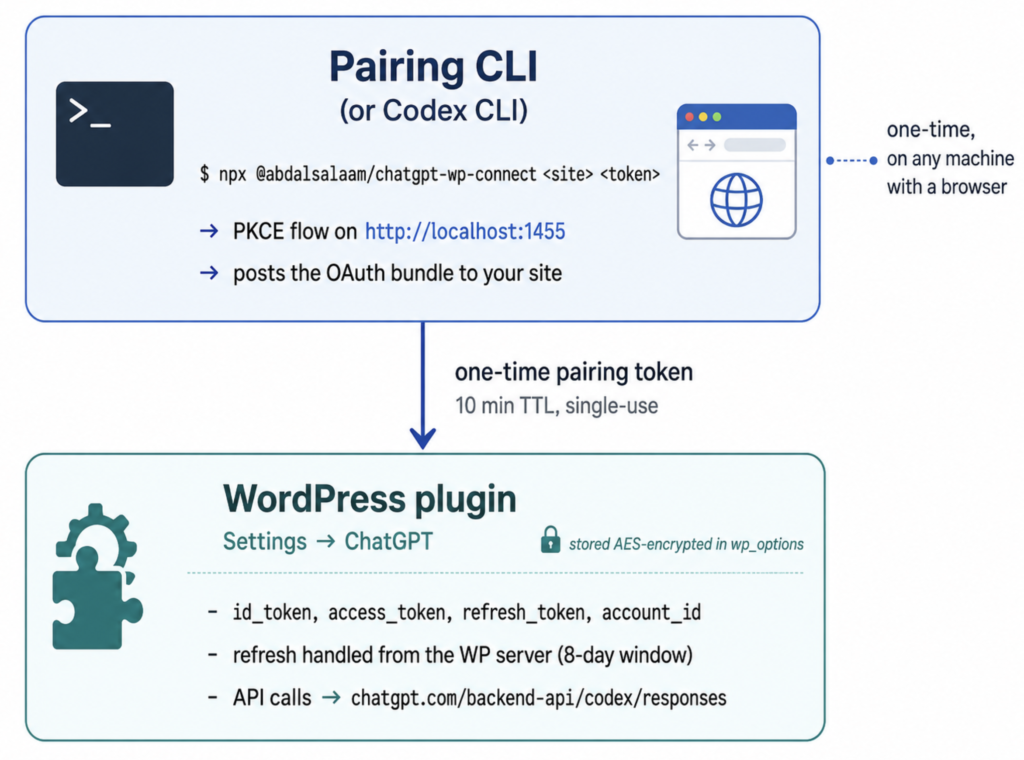
The trick that makes the two-piece design work: OpenAI’s allowlist for the public Codex client only permits http://localhost:1455 (and 1457 as fallback) as redirect URIs. That restriction applies to the *authorize* step only. Token refresh and API calls have no such restriction. So once the bundle is paired, the WordPress server handles refresh and every subsequent API call on its own. The laptop is out of the loop forever.
The pairing protocol
A CLI on your laptop posting tokens to your server is exactly the kind of “convenience” feature that tends to be sloppy in the security model. The pairing endpoint has six properties worth naming explicitly:
- 256-bit, single-use token. Minted by an admin-only REST route.
- Hashed at rest. Only the SHA-256 is stored; the raw token never touches the database.
- 10-minute TTL. Issuing a new token revokes any prior outstanding one.
- Atomic redemption. Using
delete_transient‘s boolean return value, so two concurrent redemptions can’t both win. - Per-IP rate limit. 10 attempts per minute by default, filterable.
- Generic error responses. Parser internals never leak to unauthenticated callers.
The OAuth bundle itself is encrypted at rest with sodium_crypto_secretbox, using a 32-byte key derived from AUTH_KEY and LOGGED_IN_KEY. The plugin refuses to read or write tokens when those salts are missing, shorter than 32 chars, or still set to the wp-config placeholder. A SQL dump alone is not enough to recover the tokens.
What you trade for the convenience
This plugin works today and the engineering is real, but the trade-offs are not subtle and they belong above the fold:
- Reused first-party
client_id. The OAuth consent screen will say “Codex CLI” because that’s the OpenAI-owned app whose client_id is used. If OpenAI revokes or rotates that client, the plugin breaks the same day. - No API DPA. Traffic goes through the consumer ChatGPT backend. Prompts may be used by OpenAI for training unless the connected account has training opt-out enabled. If you’re processing customer data or anything covered by a data-processing agreement, this is the wrong tool. Use the official
ai-provider-for-openaiplugin with an API key. - Consumer plans only. Free / Plus / Pro work. Business / Edu / Enterprise do not.
- No image generation. The Codex backend doesn’t expose DALL-E or
gpt-image. Text generation, chat history, function calling, tool use, structured output via JSON schema all work.
The honest framing is: this is a proof of concept that happens to be production-quality on the security and refresh-handling side. It’s appropriate for a personal site, an internal tool, or experimentation. It is not appropriate for a store handling customer data, and that’s a vendor-policy problem, not a plugin problem.
What this means for you
If you’ve been holding off on the WP 7.0 AI features because the API-account bill felt like a tax on experimentation, this gives you a way to use what you’re already paying for. If you’d rather not depend on an undocumented OAuth surface, the same WP AI Provider architecture supports cheaper paths. I’ve also published a Kimi connector (source on GitHub) that hits the standard Moonshot API with a straightforward key, at a fraction of OpenAI’s per-token cost.
The broader ask, though, is at the platform layer. The reason the “drop in an API key and forget” pattern keeps producing surprise bills is that consumer subscriptions and developer APIs are two separate billing surfaces with no bridge between them. Codex CLI shows that the bridge is technically trivial. What’s missing is a vendor-blessed “Sign in with my subscription” flow that third-party apps can build on without standing on top of an OAuth client they don’t own.
Try it
Want the cheaper, no-OAuth alternative? Read the companion post: WordPress AI Connector for Kimi (Moonshot).
# WordPress plugin
https://github.com/Abdalsalaam/ai-provider-for-chatgpt

# Pairing CLI
npx @abdalsalaam/chatgpt-wp-connect <site-url> <pairing-token>
Both are GPL-2.0-or-later. Issues and PRs welcome.